
No products in the cart.
How to deploy DeepSeek-R1 on AI Box–NeoEdge NG4500
DeepSeek-R1 Local Deployment on AIbox
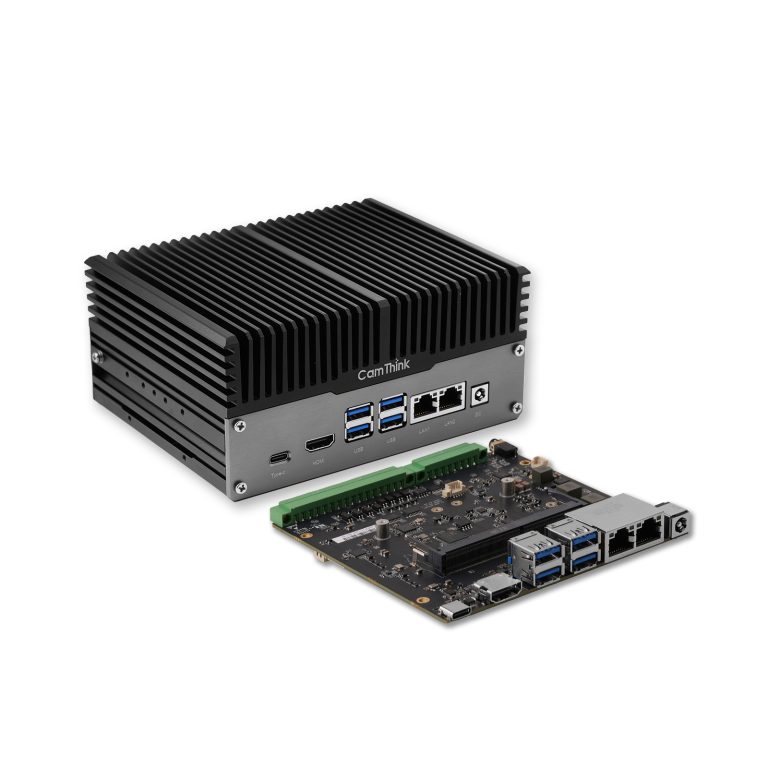
Unlock the power of offline reasoning on your edge device.This guide describes how to locally deploy the DeepSeek-R1 LLMs on the CamThink AI box(NeoEdge NG4500) using Ollama, a lightweight inference engine. This setup enables secure, offline AI interaction with a seamless installation process, turning your AIbox into a private reasoning engine. We have also uploaded this project to Hackster, hoping it can help more people understand how to quickly deploy large language models locally.
1. Overview
Large language models (LLMs) like DeepSeek-R1 are revolutionizing edge intelligence. Deploying them directly on the CamThink AI box offers distinct advantages over cloud-based solutions:
- Fully Offline Operation: No internet connection required for inference.
- Zero Latency: Process data locally without network delays.
- Enhanced Privacy: Your data never leaves the device.
This guide includes:
- Environment preparation for AIbox
- Installing the Ollama inference engine
- Running DeepSeek-R1 models
- (Optional) Setting up Open WebUI for a chat interface
2. Environment Preparation
Before starting, ensure your AIbox meets the following requirements to run DeepSeek-R1 efficiently.Hardware Requirements
| Component | Requirement | Recommended Device |
| Device | CamThink AIbox Series | AIbox Pro / Ultra |
| Memory (RAM) | ≥ 8GB | 16GB+ recommended for larger models |
| Storage | ≥ 20GB Free Space | NVMe SSD recommended for faster loading |
| NPU/GPU | AI Accelerator | Supported NPU/GPU enabled |
Software Requirements
- OS: Ubuntu 20.04 / 22.04 LTS (Pre-installed on AIbox)
- Docker: Recommended for containerized deployment (Pre-installed on most versions)
- Network: Internet connection (required only for initial installation and model download)
Tip: Ensure your AIbox is running in High Performance Mode to maximize inference speed. Run the performance script in your terminal: sudo aibox-performance --set max.
3. Ollama Installation (Inference Engine)
Ollama is the most efficient way to run LLMs locally on edge devices.Option A: One-Line Script Installation (Recommended)Open your AIbox terminal and run the following command:Bash
curl -fsSL https://ollama.com/install.sh | sh
- This automatically installs the Ollama service and CLI tools.
- It configures system dependencies optimized for the AIbox architecture.
Option B: Docker DeploymentIf you prefer keeping your environment clean, use Docker:
- sudo docker run -d –network=host
- -v ~/ollama:/root/.ollama
- –name ollama
- ollama/ollama
Verify InstallationCheck if the service is running by typing:Bashsystemctl status ollama Or check the listening port: Bashss -tuln | grep 11434 Expected Output: LISTEN 0 128 127.0.0.1:11434 ...
4. Running DeepSeek-R1
Once Ollama is ready, you can pull and run the DeepSeek-R1 model with a single command.Get StartedTo run the specialized distilled version (optimized for edge devices):Bash
ollama run deepseek-r1:1.5b
- Ollama will automatically download the model (approx. 1.1GB) if not cached.
- It launches an interactive chat session directly in your terminal.
Model Selection Guide for AIboxChoose the model size that fits your AIbox hardware:
| Model Version | Memory Requirement | Performance Note |
| DeepSeek-R1 1.5B | ~1.5 – 3 GB | Fastest. Ideal for real-time tasks and basic reasoning. |
| DeepSeek-R1 7B/8B | ~6 – 8 GB | Balanced. Good reasoning capability, runs smoothly on 8GB+ models. |
| DeepSeek-R1 14B | ~10 – 12 GB | High IQ. Requires AIbox High-End versions (16GB RAM+). |
5. Web Interface (Open WebUI)
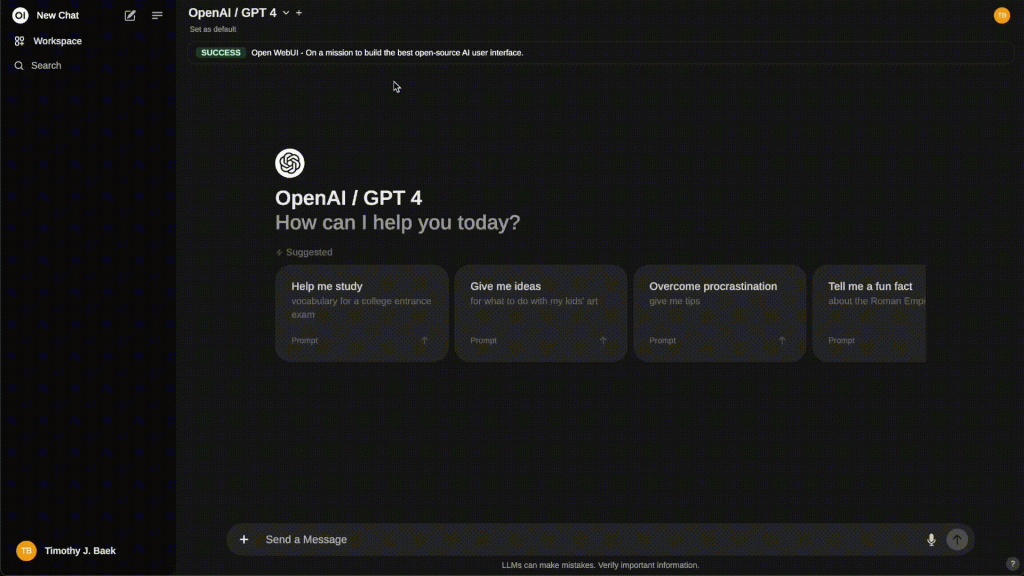
Prefer a ChatGPT-like interface instead of the command line? Install Open WebUI.Install via DockerRun this command to set up the web interface:Bash
- sudo docker run -d –network=host
- -v open-webui-data:/app/backend/data
- -e OLLAMA_BASE_URL=http://127.0.0.1:11434
- –name open-webui
- –restart always
- ghcr.io/open-webui/open-webui:main
Access the InterfaceOpen the browser on your AIbox (or a PC connected to the same network) and visit:http://localhost:3000/ > (If accessing from another PC, replace localhost with your AIbox’s IP address) You can now:
- Chat with DeepSeek-R1 graphically.
- Save conversation history.
- Switch between different models easily.
6. Performance Optimization
To get the best token-per-second (TPS) rates on your AIbox:
| Optimization Area | Action |
| Memory Management | Close unused background applications or desktop GUIs (Headless mode). |
| Thermal Control | Ensure the AIbox fan is not obstructed; active cooling helps sustain peak performance. |
| Model Quantization | Use q4_k_m (4-bit quantization) models, which are default in Ollama, to save RAM. |
| System Power | Use the provided 12V/3A+ power adapter to prevent throttling under load. |
Note: The first prompt might take 10-20 seconds to load the model into memory. Subsequent responses will be significantly faster.
7. Troubleshooting
Common Issues & Solutions
- Issue:
Error: pull model manifest: file does not exist- Solution: Check your internet connection. The model name might be incorrect; try
ollama pull deepseek-r1:1.5b.
- Solution: Check your internet connection. The model name might be incorrect; try
- Issue: Sluggish response / System freeze
- Solution: The model might be too large for your RAM. Try switching from the 7B/8B model to the 1.5B version.
- Issue: Cannot access WebUI from another computer
- Solution: Ensure the AIbox firewall allows traffic on port 3000. Use
sudo ufw allow 3000.
- Solution: Ensure the AIbox firewall allows traffic on port 3000. Use
Lorem ipsum dolor sit amet, consectetur adipiscing elit. Ut elit tellus, luctus nec ullamcorper mattis, pulvinar dapibus leo.
References
- DeepSeek-R1 Model on HuggingFace
- Ollama Official Documentation
- Open WebUI GitHub
- NVIDIA Jetson Developer Forum